
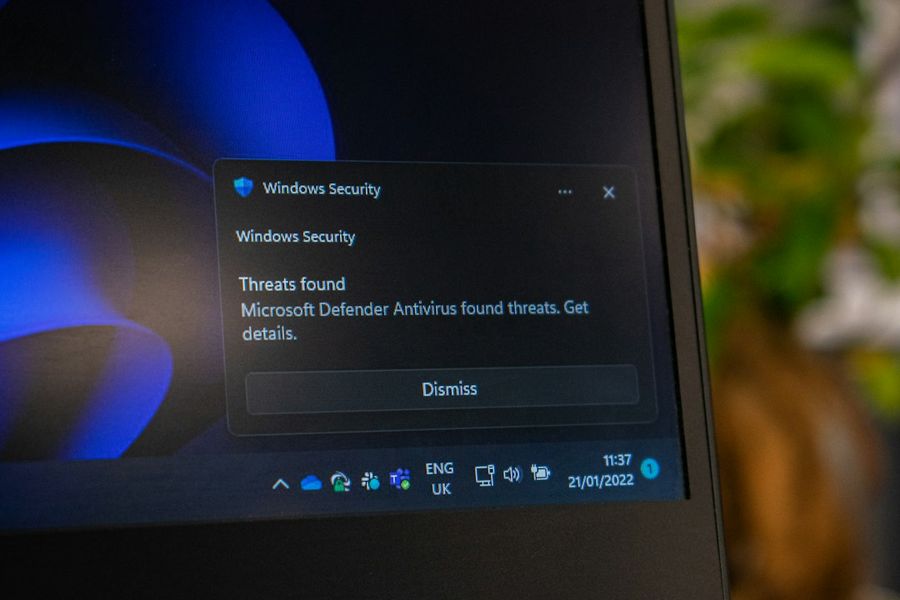
Ransomware has evolved from a nuisance to a full‑blown crisis for enterprises and power users alike. While many articles skim the surface, this guide dives deep into the technical arsenal you need to spot, stop, and recover from ransomware on Windows systems. We’ll walk through hardening the OS, configuring native defenses, deploying forensic tools, and automating response workflows. By the end you’ll have a reproducible playbook that can be rolled out across a domain or a single workstation.
What You’ll Need
- Windows 10/11 Pro or Enterprise (Build 1903 or later)
- Administrative rights on the target machine or domain controller
- PowerShell 5.1+ (or PowerShell 7 if you prefer cross‑platform)
- Windows Defender Antivirus (built‑in) or a reputable third‑party AV
- Sysinternals Suite (Procmon, Autoruns, Sigcheck)
- Microsoft Defender for Endpoint (optional but highly recommended)
- Network isolation capability (e.g., VLANs, firewall rules)
Step 1: Harden the Baseline – Secure Configuration
Before you can detect ransomware you must shrink the attack surface. Run the following PowerShell script to enforce a hardened baseline using Group Policy and security settings. Save it as Harden-Win10.ps1 and execute with Run as Administrator:
Set-ExecutionPolicy RemoteSigned -Scope Process -Force
# Enable Controlled Folder Access (CFA)
Set-MpPreference -EnableControlledFolderAccess Enabled
# Require SMB signing
Set-ItemProperty -Path 'HKLM:SYSTEMCurrentControlSetServicesLanmanServerParameters' -Name 'RequireSecuritySignature' -Value 1
# Disable SMBv1
Set-ItemProperty -Path 'HKLM:SYSTEMCurrentControlSetServicesLanmanServerParameters' -Name 'SMB1' -Value 0
# Turn on Windows Defender Exploit Guard (Attack Surface Reduction)
Set-MpPreference -AttackSurfaceReductionRules_Ids 56a863a9-875e-4185-98a2-01c0d0e6c8d9 -Enable $true
# Enforce Credential Guard (requires Hyper‑V)
Enable-WindowsOptionalFeature -Online -FeatureName Windows-Defender-ApplicationGuard -NoRestart
This script activates Controlled Folder Access, forces SMB signing, disables the legacy SMBv1 protocol, and turns on key Exploit Guard rules. These settings alone block many ransomware delivery mechanisms.
Step 2: Deploy Real‑Time Monitoring with Windows Defender for Endpoint
If you have access to Microsoft Defender for Endpoint (MDE), onboard the machine using the following command. MDE provides behavioral analytics, quarantine automation, and a rich investigation portal.
mdmclient.exe -install -package "C:Program FilesMicrosoft Defender for EndpointMDEInstaller.msi" -quietAfter installation, verify connectivity:
Get-MpComputerStatus | Select-Object -Property AMServiceEnabled,RealTimeProtectionEnabled,IsTamperProtectedAll three should return True. If any flag is False, investigate the cause—often a conflicting third‑party AV or a mis‑configured policy.
Step 3: Set Up File‑System Auditing and Alerting
Ransomware typically encrypts files en masse, generating a flood of write events. Enable auditing on critical directories (e.g., C:Users*Documents, C:ProgramData) and pipe the events to the Windows Event Log.
# Create an audit policy for file writes
auditpol /set /subcategory:"File System" /success:enable /failure:enable
# Apply SACL to a folder (replace USER with a real account)
icacls "C:Users*Documents" /setintegritylevel (OI)(CI)M
# Enable Advanced Auditing via GPO or locally
auditpol /set /category:"Object Access" /success:enable /failure:enable
Next, configure a simple PowerShell script that watches the Security log for a surge of Event ID 4663 (Object Access). When more than 100 such events appear within a minute, trigger an alert.
$threshold = 100
$window = New-TimeSpan -Minutes 1
Register-ObjectEvent -InputObject (Get-WinEvent -LogName Security -FilterXPath "*[System[EventID=4663]]") -EventName NewEvent -Action {
    $global:counter = ($global:counter + 1)
    if ($global:counter -gt $threshold) {
        # Send email via SMTP (configure $smtpServer, $from, $to)
        Send-MailMessage -SmtpServer $smtpServer -From $from -To $to -Subject "Potential Ransomware Activity" -Body "High volume of file write events detected."
        $global:counter = 0
    }
    Start-Sleep -Seconds $window.TotalSeconds
    $global:counter = 0
}
This lightweight monitor can be expanded with a SIEM integration (e.g., Splunk, Sentinel) for enterprise‑scale correlation.
Step 4: Scan for Known Ransomware Indicators with Sysinternals
Many ransomware families drop a unique executable or use a characteristic registry key. Use Autoruns and Sigcheck to enumerate autorun locations and verify digital signatures.
# Export all autorun entries to CSV
autoruns.exe -accepteula -a * -c > C:tempautoruns.csv
# Identify unsigned binaries (potential malicious payloads)
sigcheck.exe -accepteula -e -q -u C:tempautoruns.csv > C:tempunsigned.txt
Review unsigned.txt for any unknown executables. Cross‑reference their hashes with VirusTotal using the API (replace $vtKey with your key):
$hashes = Get-Content C:tempunsigned.txt | Select-String -Pattern "[A-F0-9]{64}" -AllMatches | ForEach-Object {$_.Matches.Value}
foreach ($h in $hashes) {
    $uri = "https://www.virustotal.com/api/v3/files/$h"
    $result = Invoke-RestMethod -Headers @{"x-apikey"=$vtKey} -Uri $uri -Method Get
    if ($result.data.attributes.last_analysis_stats.malicious -gt 0) {
        Write-Host "Malicious file detected: $h"
    }
}
This step catches ransomware that has already persisted on the system.
Step 5: Isolate and Remediate Infected Machines
If you confirm ransomware activity, the fastest containment method is network isolation. Use PowerShell to disable the NIC temporarily while preserving the ability to run remediation scripts.
# Get the primary NIC name
$nic = (Get-NetAdapter | Where-Object {$_.Status -eq "Up"} | Select-Object -First 1).Name
# Disable the NIC (requires admin)
Disable-NetAdapter -Name $nic -Confirm:$false
# Log the action
Add-Content -Path C:tempransomware.log -Value "$(Get-Date) – $env:COMPUTERNAME NIC $nic disabled for isolation"
With the machine isolated, run a full Defender scan and then invoke Reset-ComputerMachinePassword to reset any compromised credentials. Finally, restore encrypted files from backups or use built‑in shadow copies if available:
# List available shadow copies for a volume
vssadmin list shadows /for=C:
# Restore a specific copy (replace {ID})
wbadmin start recovery -version:{ID} -itemType:File -items:C:Users*Documents -recoveryTarget:C:Recovered -quiet
Always verify the integrity of restored files before re‑enabling the network.
Step 6: Automate Post‑Infection Hardening
After remediation, you want to ensure the same vector cannot be reused. Deploy a scheduled task that re‑applies the hardening script from Step 1 every 24 hours and alerts you if any setting drifts.
$action = New-ScheduledTaskAction -Execute 'PowerShell.exe' -Argument '-NoProfile -WindowStyle Hidden -File "C:ScriptsHarden-Win10.ps1"'
$trigger = New-ScheduledTaskTrigger -Daily -At 02:00am
Register-ScheduledTask -TaskName "WinHardening" -Action $action -Trigger $trigger -RunLevel Highest -User "SYSTEM"
Couple this with a compliance check that compares current registry values against a known‑good baseline, sending an email if any deviation is detected.
Common Mistakes to Avoid
1. Disabling Windows Defender completely. Many users install third‑party AV and turn off Defender, losing the layered protection that Exploit Guard provides.
2. Over‑reliance on signature‑based AV. Ransomware often uses zero‑day encryptors; behavioral detection (MDE, CFA) is essential.
3. Neglecting backup testing. Backups that cannot be restored are useless. Perform quarterly restore drills.
4. Leaving SMBv1 enabled. Legacy SMB is a frequent ransomware drop point (e.g., WannaCry).
5. Running remediation scripts without isolation. Network spread can happen within seconds; isolate first.
Tips and Tricks
• Use PowerShell Constrained Language Mode for scripts that run under low‑privilege accounts – it blocks many malicious payloads.
• Enable AppLocker or Windows Defender Application Control (WDAC) to whitelist only approved executables.
• Leverage Windows Event Forwarding (WEF) to centralize audit logs; a single SIEM view makes spotting mass file changes trivial.
• Deploy BitLocker with TPM + PIN to protect data at rest; even if ransomware encrypts files, the attacker cannot exfiltrate without the key.
• Regularly update the Exploit Guard rule set via Set-MpPreference -AttackSurfaceReductionOnlyExclusions to avoid false positives that users might disable.
Frequently Asked Questions
Can I rely solely on Controlled Folder Access?
CFA is powerful but not a silver bullet. It blocks unauthorized writes to protected folders, yet sophisticated ransomware can target unprotected locations or use legitimate signed binaries. Combine CFA with behavior‑based detection and strict application control for comprehensive coverage.
What if my backups are also encrypted?
Some ransomware families attempt to encrypt mounted network shares or attached backup drives. To mitigate, keep backups offline or on immutable storage (e.g., Azure Immutable Blob, AWS S3 Object Lock). Test restoration regularly to ensure the backup set remains clean.
Is PowerShell safe to use for detection scripts?
PowerShell itself is a double‑edged sword. When executed in Constrained Language Mode or under a low‑privilege account, it is safe and can be audited. However, attackers often abuse PowerShell for lateral movement, so always monitor PowerShell logging (Enable‑ModuleLogging, Enable‑ScriptBlockLogging) and feed those logs into your SIEM.
Conclusion
Ransomware on Windows is a moving target, but with a disciplined approach—hardening the OS, enabling native behavioral defenses, continuously auditing file activity, and automating containment—you can dramatically reduce both the likelihood of infection and the impact if it does occur. Remember that technology is only part of the solution; regular user training, tested backups, and a clear incident‑response playbook are equally critical. Implement the steps outlined above, adapt them to your environment, and stay vigilant. The battle against ransomware is ongoing, but armed with these advanced techniques you’ll be ready to defend your data and keep your Windows machines resilient.


