
Keeping an eye on your PC’s temperature, fan speed, and voltage is essential for longevity and performance, yet many beginners feel intimidated by the jargon and tools involved. Open Hardware Monitor (OHM) is a free, open‑source utility that simplifies this task on Windows. In this guide we’ll walk you through every step—from downloading the program to setting up custom alerts—so you can confidently monitor your hardware health without breaking a sweat.
What You’ll Need
- A Windows PC (Windows 7, 8, 10 or 11)
- Administrator rights for installing software
- Internet connection to download Open Hardware Monitor
- Basic familiarity with Windows Explorer and the system tray
- Optional: A text editor (e.g., Notepad) if you want to edit configuration files
Step 1: Download Open Hardware Monitor
Open your preferred browser and navigate to the official Open Hardware Monitor website (https://openhardwaremonitor.org). Click the “Download” button, which typically points to a ZIP archive (e.g., OpenHardwareMonitor-v0.9.6.zip). Save the file to a location you can easily access, such as your Desktop or Downloads folder. Because OHM is portable, there’s no installer—just a compressed package.
Step 2: Extract and Run the Application
Right‑click the downloaded ZIP file and select “Extract All…”. Choose a destination folder like C:Program FilesOpenHardwareMonitor (you may need admin rights for Program Files). Once extracted, open the folder and double‑click OpenHardwareMonitor.exe. The program will launch without asking for installation. If Windows SmartScreen warns you, click “More info” then “Run anyway”—the software is open‑source and safe.
Step 3: Familiarise Yourself with the Interface
The main window displays a tree view on the left, listing categories such as “Computer”, “CPU”, “GPU”, “Motherboard”, and “Sensors”. Clicking a node expands a list of individual sensors (e.g., “CPU Core #1”, “GPU Temperature”). The right pane shows real‑time graphs for the selected sensor. To keep an eye on values while you work, right‑click any sensor and choose “Show in tray”. This pins the selected reading to the system tray, where you can hover for live updates.
Step 4: Add Custom Sensors (Optional but Powerful)
If your hardware includes sensors that OHM doesn’t detect automatically, you can add them manually. Go to Options → Sensors → Add Sensor. You’ll need the sensor’s hardware ID, which you can locate in the device manager under “Sensors” or by using a tool like HWInfo. Once you have the ID, paste it into the dialog, give the sensor a friendly name, and click “OK”. The new sensor appears alongside the native ones, and you can treat it exactly the same way—graph it, log it, or set alerts.
Step 5: Set Up Logging for Historical Data
Tracking trends over days or weeks helps you spot overheating patterns. Open the menu File → Save Report to export a CSV file manually, or enable automatic logging via Options → Log Sensors. Choose a folder (e.g., C:OHM_Logs) and set the interval—30 seconds is a good balance between detail and file size. OHM will create timestamped CSV files that you can open in Excel or any spreadsheet program for analysis.
Step 6: Configure Alerts and Notifications
To avoid surprise shutdowns, set temperature thresholds that trigger a warning. Right‑click a temperature sensor, select “Set Minimum/Maximum”, then enter a value (e.g., 80 °C for a CPU). When the sensor exceeds the limit, OHM will flash the tray icon and optionally play a sound. For more advanced alerts, go to Options → Notification Settings and enable “Show balloon tip” or “Run custom script”. You could, for example, launch a batch file that gracefully closes demanding applications.
Common Mistakes to Avoid
1 Running OHM as a standard user when admin rights are needed. Some sensors (especially motherboard voltage readings) are hidden from non‑admin accounts. If you see missing data, right‑click OpenHardwareMonitor.exe and select “Run as administrator”.
2 Ignoring the need for 64‑bit version on a 64‑bit OS. The 32‑bit build can’t access certain hardware registers, leading to incomplete sensor lists. Always download the version that matches your OS architecture.
3 Leaving the program closed after setup. OHM only updates while it’s running. Pin the executable to your startup folder (%APPDATA%MicrosoftWindowsStart MenuProgramsStartup) if you want continuous monitoring.
4 Setting alert thresholds too low. A CPU that idles at 45 °C may spike to 70 °C under load—setting a maximum of 50 °C will cause constant false alarms.
5 Deleting log files without backing them up. Logs can become valuable for warranty claims or troubleshooting. Schedule a weekly backup or move them to cloud storage.
Tips and Tricks
• Use the “Minimize to Tray” option. Right‑click the title bar and select “Minimize to Tray” to keep the UI out of the way while still collecting data.
• Combine OHM with Task Scheduler. Create a task that launches OHM at boot with the /minimized switch for a silent start.
• Export graphs as images. Click the graph area, then choose “Save Image As…” to embed sensor trends in reports or forums.
• Leverage the built‑in “Temperature Unit” toggle. Switch between Celsius and Fahrenheit via Options → Temperature Unit to match your regional preferences.
• Monitor multiple PCs simultaneously. Install OHM on each machine and use a remote desktop or a network share to collect logs centrally.
Frequently Asked Questions
Can Open Hardware Monitor read SSD temperatures?
Yes, if the SSD exposes a SMART temperature attribute. OHM reads SMART data via the Windows Management Instrumentation (WMI) layer, so most modern NVMe and SATA SSDs will appear under the “Storage” node.
Why does OHM show “N/A” for some voltages?
This usually indicates that the sensor is either not present or blocked by Windows security. Running the program as administrator or using the 64‑bit version often resolves the issue.
Is it safe to leave OHM running 24/7?
Absolutely. OHM has a tiny memory footprint (typically under 10 MB) and uses minimal CPU cycles. It’s designed for continuous operation and will not interfere with normal system tasks.
Conclusion
Monitoring hardware health doesn’t have to be a daunting, command‑line‑only activity. With Open Hardware Monitor, even a complete beginner can gain real‑time insight into temperatures, fan speeds, and voltages, set up logging for long‑term analysis, and receive alerts before problems become critical. Follow the steps above, avoid the common pitfalls, and you’ll keep your Windows PC running cool, quiet, and reliably for years to come.
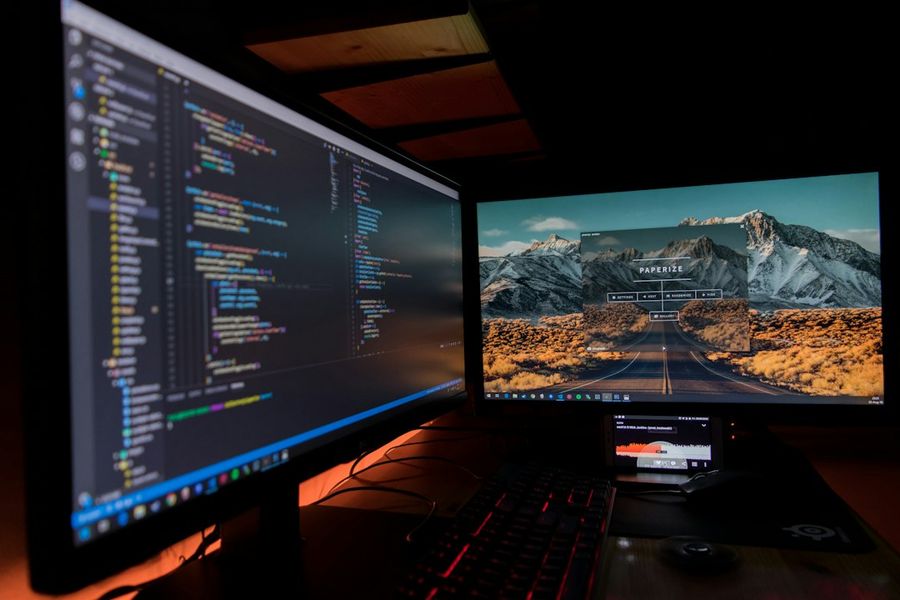
Photo by Fotis Fotopoulos on Unsplash


