
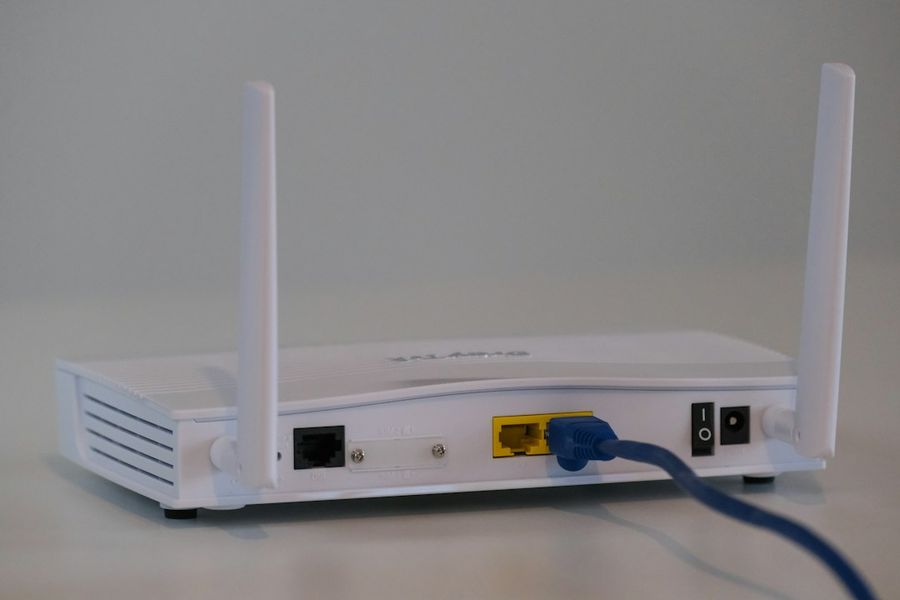
Setting up a reliable home Wi‑Fi network may sound intimidating, but with the right approach you can have a fast, secure connection in under an hour. Whether you’re replacing an old router, moving into a new place, or simply want to tighten your network’s security, this guide walks you through every step in plain language, complete with real settings you’ll type, common mistakes to sidestep, and a few pro‑tips to keep your signal strong.
What You’ll Need
- A broadband modem (often provided by your ISP)
- A Wi‑Fi router that supports at least 802.11ac (or the newer Wi‑Fi 6 standard)
- A computer, tablet, or smartphone for initial configuration
- Access to the router’s default login credentials (usually printed on a sticker)
- An Ethernet cable (optional but handy for the first setup)
Step 1: Choose the Right Router
Not all routers are created equal. For a beginner, look for a model that offers a simple web or mobile app interface, automatic firmware updates, and dual‑band (2.4 GHz + 5 GHz) support. Brands like TP‑Link, Netgear, and ASUS provide entry‑level models that balance price and performance. If you have many smart devices, consider a router with MU‑MIMO and at least three external antennas; these features help multiple devices communicate simultaneously without choking the bandwidth.
Step 2: Connect Your Router to the Modem
Power off both the modem and the router. Plug one end of an Ethernet cable into the modem’s LAN port and the other end into the router’s WAN (or Internet) port—usually colored blue. Turn the modem back on first; wait for its lights to stabilize (typically 30‑60 seconds). Then power on the router. Most modern routers will automatically detect the internet connection and assign a public IP address within a minute.
Step 3: Access the Router’s Web Interface
On your computer or phone, connect to the router’s default Wi‑Fi network (SSID and password are on the sticker). Open a web browser and type the router’s default gateway, commonly 192.168.0.1 or 192.168.1.1. If those don’t work, check the sticker or run ipconfig (Windows) / ifconfig (macOS/Linux) to find the “Default Gateway.” You’ll be prompted for a username and password—often admin/admin or admin/password. Change these credentials immediately under the “Administration” or “System” menu to prevent unauthorized access.
Step 4: Configure Your Wi‑Fi SSID and Password
Navigate to the “Wireless” or “Wi‑Fi Settings” section. Here you can set the SSID (the network name) for both the 2.4 GHz and 5 GHz bands. Choose a name that’s easy to recognize but doesn’t reveal personal info (avoid using your address or name). For the password, select WPA2‑PSK (or WPA3‑Personal if your router supports it) and create a strong passphrase—at least 12 characters mixing uppercase, lowercase, numbers, and symbols. Example: G7!rT9$kLm2#. Save the changes; the router will reboot and broadcast the new SSIDs.
Step 5: Secure Your Network with Encryption and Guest Access
Beyond the main password, enable the following security features:
- Disable WPS: Wi‑Fi Protected Setup is convenient but vulnerable to brute‑force attacks.
- Turn on the firewall: Most routers have a built‑in NAT firewall; keep it enabled.
- Set up a guest network: Provide visitors with internet access without exposing your primary LAN. Assign a separate SSID, use a different password, and restrict access to local resources.
Apply the settings and test both the main and guest networks with a smartphone to ensure they work as expected.
Step 6: Optimize Channel, Bandwidth, and Placement
Interference from neighboring Wi‑Fi networks can degrade performance. In the “Advanced Wireless” menu, enable “Auto‑Channel” or manually select a channel with the least overlap (channels 1, 6, and 11 are safest on 2.4 GHz). For the 5 GHz band, pick any channel; the spectrum is wider and less congested. If your router supports “Band Steering,” enable it to automatically guide compatible devices to the faster 5 GHz band. Finally, place the router on a high shelf, away from thick walls, microwaves, and cordless phones. Central positioning in your home yields the most even coverage.
Common Mistakes to Avoid
1. Using default passwords: Leaving admin/admin open invites hackers. Change them immediately.
2. Choosing WPA or no encryption: Always select WPA2‑PSK or WPA3‑Personal; older protocols are easily cracked.
3. Setting the SSID to “hidden”: Hidden networks don’t improve security and can cause connection delays.
4. Placing the router in a closet or cabinet: Physical obstructions dramatically cut signal range.
5. Neglecting firmware updates: Out‑of‑date firmware can contain known vulnerabilities. Check the “Firmware Upgrade” section regularly.
Tips and Tricks
• Use a wired backhaul for mesh systems: If you opt for a mesh Wi‑Fi kit, connect the satellite units via Ethernet for the best throughput.
• Enable “Smart Connect” or “Band Steering”: This merges the two SSIDs into one, letting the router decide the optimal band for each device.
• Schedule automatic reboots: A nightly reboot clears memory leaks and keeps performance smooth.
• Create device‑specific MAC address filters: For added control, whitelist only the MAC addresses of trusted devices.
• Monitor usage with the router’s app: Most modern routers provide real‑time traffic graphs, helping you spot bandwidth hogs.
Frequently Asked Questions
Can I use the same SSID for 2.4 GHz and 5 GHz bands?
Yes, most routers allow a single SSID that spans both bands. This simplifies device management, and the router’s band‑steering algorithm will automatically assign each device to the best frequency. However, if you notice frequent disconnects, try separate SSIDs to manually control which band a device uses.
Why is my Wi‑Fi speed slower than my internet plan?
Wi‑Fi speed is influenced by distance, interference, and the router’s capabilities. Test the speed directly at the router with an Ethernet cable; if it matches your ISP’s rate, the issue is wireless. Try changing the channel, moving the router to a central location, or upgrading to a router that supports Wi‑Fi 6 for higher throughput.
Do I need to change my router’s firmware?
Absolutely. Firmware updates patch security holes, improve stability, and sometimes add new features. Most routers have an “Automatic Update” toggle—enable it. If you prefer manual updates, download the latest version from the manufacturer’s support site and upload it via the router’s “Firmware Upgrade” page.
Conclusion
Setting up a home Wi‑Fi network doesn’t require a degree in networking—just a little patience and the right steps. By choosing a capable router, securing it with strong encryption, optimizing channels, and avoiding common pitfalls, you’ll enjoy fast, reliable internet across every corner of your home. Remember to keep the firmware current and revisit your settings whenever you add new devices or change your internet plan. Happy surfing!
Photo by Compare Fibre on Unsplash