
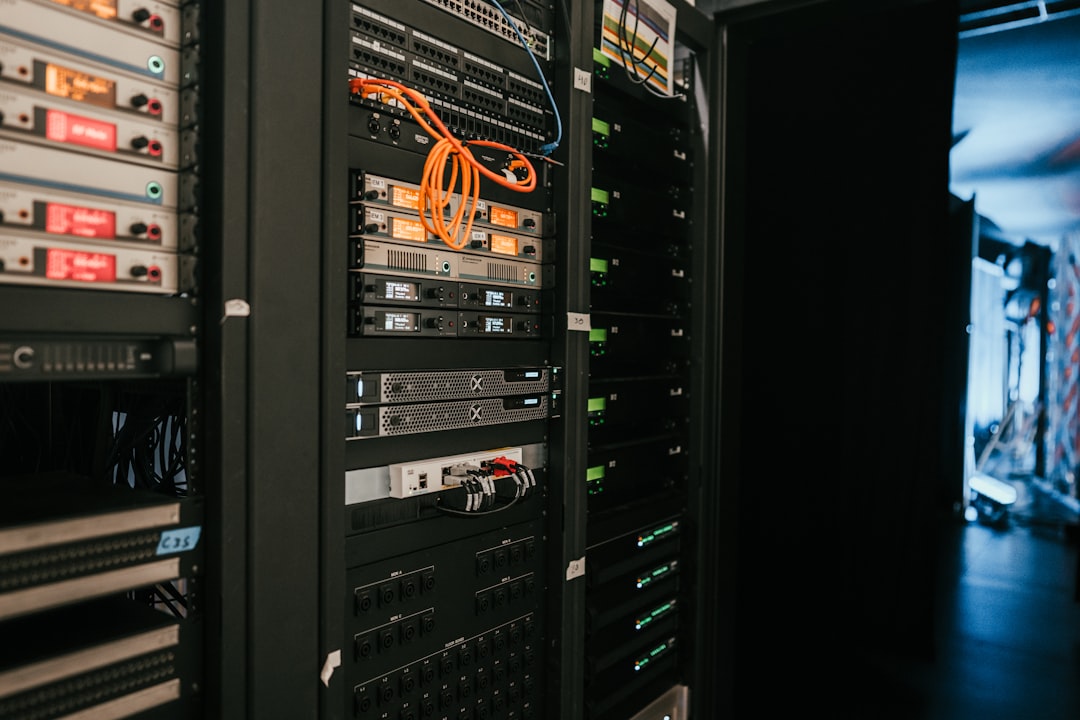
Welcome to our guide on building a home media server with Plex. In this article, we’ll show you how to set up a powerful media server that can stream your favorite movies, TV shows, and music to any device on your network. With Plex, you can access your media library from anywhere, whether you’re at home or on the go.
What You’ll Need
- A computer or server with a decent processor and plenty of storage
- Plex Media Server software
- A router and network equipment
- Devices to stream to, such as smart TVs, gaming consoles, or mobile devices
Step 1: Choose Your Hardware
When it comes to choosing the hardware for your media server, you have a few options. You can use an old computer or laptop, or you can purchase a dedicated server. Consider the amount of storage you’ll need, as well as the processing power required to handle multiple streams at once. Some popular options include the Intel NUC, the Raspberry Pi, and the Synology DiskStation.
Step 2: Install Plex Media Server
Once you have your hardware, it’s time to install Plex Media Server. You can download the software from the Plex website and follow the installation instructions. Make sure to choose the correct operating system and follow any additional setup instructions. On Windows, you can use the command plex.exe to launch the installer, while on macOS, you can use brew install plex-media-server.
Step 3: Set Up Your Media Library
After installing Plex, it’s time to set up your media library. This involves adding your movies, TV shows, and music to the Plex database. You can do this by creating folders for each type of media and adding them to the Plex settings. Make sure to use a consistent naming convention and organize your files in a logical manner.
Step 4: Configure Your Network
To stream your media to other devices, you’ll need to configure your network. This involves setting up port forwarding on your router and ensuring that your devices can communicate with the Plex server. You can use the command netstat -an | grep 32400 to check if the Plex server is listening on the correct port.
Step 5: Set Up Remote Access
One of the best features of Plex is the ability to access your media library remotely. To do this, you’ll need to set up remote access in the Plex settings. This involves creating a Plex account and linking your server to the account. You can then use the Plex app on your devices to access your media library from anywhere.
Step 6: Customize Your Plex Experience
Once you have your media server up and running, you can customize your Plex experience by adding plugins, changing the theme, and adjusting the settings. You can also use the Plex API to integrate with other services and devices.
Common Mistakes to Avoid
When building a home media server with Plex, there are a few common mistakes to avoid. One of the most common mistakes is not using a consistent naming convention for your media files. This can make it difficult for Plex to correctly identify and organize your media. Another common mistake is not configuring your network correctly, which can prevent devices from connecting to the server.
Tips and Tricks
Here are a few tips and tricks to help you get the most out of your Plex media server. One tip is to use a NAS (network-attached storage) device to store your media files. This can provide a centralized location for your media and make it easier to manage. Another tip is to use the Plex app on your devices to access your media library, rather than relying on the web interface.
Frequently Asked Questions
What is Plex Media Server?
Plex Media Server is a software application that allows you to stream your media files to devices on your network. It provides a user-friendly interface for managing your media library and streaming content to devices such as smart TVs, gaming consoles, and mobile devices.
How do I set up remote access in Plex?
To set up remote access in Plex, you’ll need to create a Plex account and link your server to the account. You can then use the Plex app on your devices to access your media library from anywhere.
Can I use Plex with other media players?
Yes, Plex can be used with other media players, such as Kodi and Emby. However, Plex is designed to work seamlessly with the Plex app, and using other media players may require additional configuration and setup.
Conclusion
Building a home media server with Plex is a great way to stream your favorite movies, TV shows, and music to devices on your network. With its user-friendly interface and powerful features, Plex makes it easy to manage your media library and access your content from anywhere. By following the steps outlined in this guide, you can create a powerful media server that meets your needs and provides hours of entertainment for you and your family.
Photo by Kevin Ache on Unsplash


