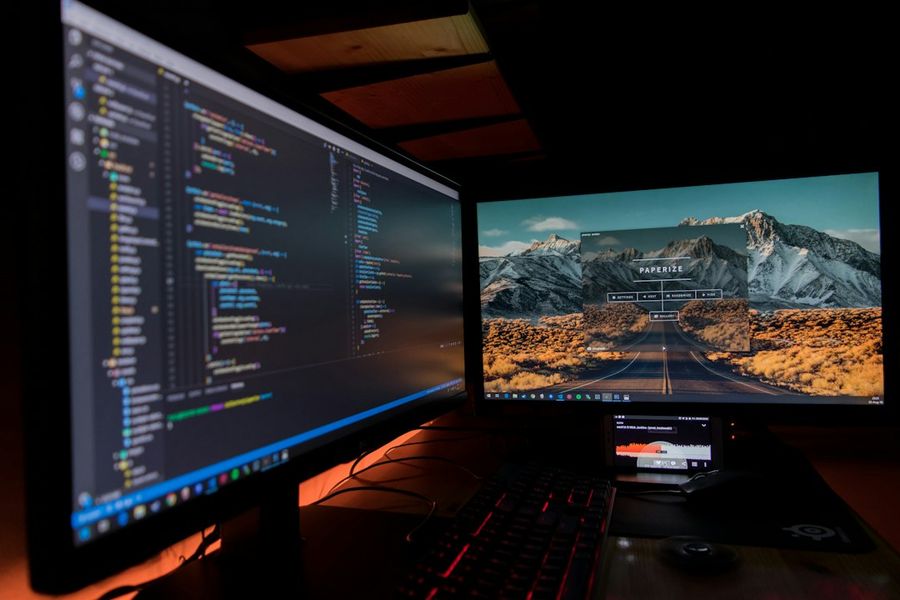
Welcome to our comprehensive guide on developing desktop applications using Electron. Electron is a framework for building cross-platform desktop applications using web technologies such as HTML, CSS, and JavaScript. With Electron, you can create native desktop applications for Windows, macOS, and Linux using web development skills. In this guide, we will walk you through the process of building a desktop application using Electron.
What You’ll Need
- Node.js installed on your computer
- A code editor or IDE of your choice
- Basic knowledge of HTML, CSS, and JavaScript
Step 1: Setting Up the Project Structure
To start building our desktop application, we need to set up the project structure. Create a new folder for your project and navigate into it. Run the command npm init to create a package.json file. This file will contain metadata for our project.
Step 2: Installing Electron
Next, we need to install Electron. Run the command npm install electron to install Electron as a dependency. This may take a few minutes to complete.
Step 3: Creating the Main Application Window
Now that we have Electron installed, we can create the main application window. Create a new file called main.js and add the following code: const { app, BrowserWindow } = require('electron'); let win; function createWindow() { win = new BrowserWindow({ width: 800, height: 600 }); win.loadURL(`file://${__dirname}/index.html`); }
Step 4: Creating the User Interface
In this step, we will create the user interface for our application. Create a new file called index.html and add the following code: <html> <head> <title>My Electron App</title> </head> <body> <h1>Welcome to my Electron app</h1> </body> </html>
Step 5: Running the Application
Now that we have created the main application window and the user interface, we can run the application. Add the following script to your package.json file: "start": "electron ." Then, run the command npm start to launch the application.
Step 6: Packaging the Application
Once we have tested and debugged our application, we can package it for distribution. We will use Electron Builder to package our application. Install Electron Builder by running the command npm install electron-builder. Then, add the following script to your package.json file: "build": "electron-builder"
Step 7: Creating a Installer
Finally, we can create a installer for our application. We will use Electron Builder to create a installer. Run the command npm run build to create a installer for our application.
Common Mistakes to Avoid
When building desktop applications with Electron, there are several common mistakes to avoid. One common mistake is not handling errors properly. Make sure to handle errors and exceptions properly to prevent your application from crashing. Another common mistake is not optimizing your application for performance. Make sure to optimize your application for performance to ensure that it runs smoothly on all platforms.
Tips and Tricks
Here are some tips and tricks for building desktop applications with Electron. One tip is to use a consistent coding style throughout your application. This will make it easier to maintain and debug your application. Another tip is to use a version control system such as Git to manage your code.
Frequently Asked Questions
What is Electron?
Electron is a framework for building cross-platform desktop applications using web technologies such as HTML, CSS, and JavaScript.
How do I install Electron?
You can install Electron by running the command npm install electron.
How do I create a desktop application with Electron?
You can create a desktop application with Electron by following the steps outlined in this guide.
Conclusion
In conclusion, building desktop applications with Electron is a straightforward process. By following the steps outlined in this guide, you can create a cross-platform desktop application using web technologies such as HTML, CSS, and JavaScript. Remember to handle errors properly, optimize your application for performance, and use a consistent coding style throughout your application. With Electron, you can create native desktop applications for Windows, macOS, and Linux using web development skills.