
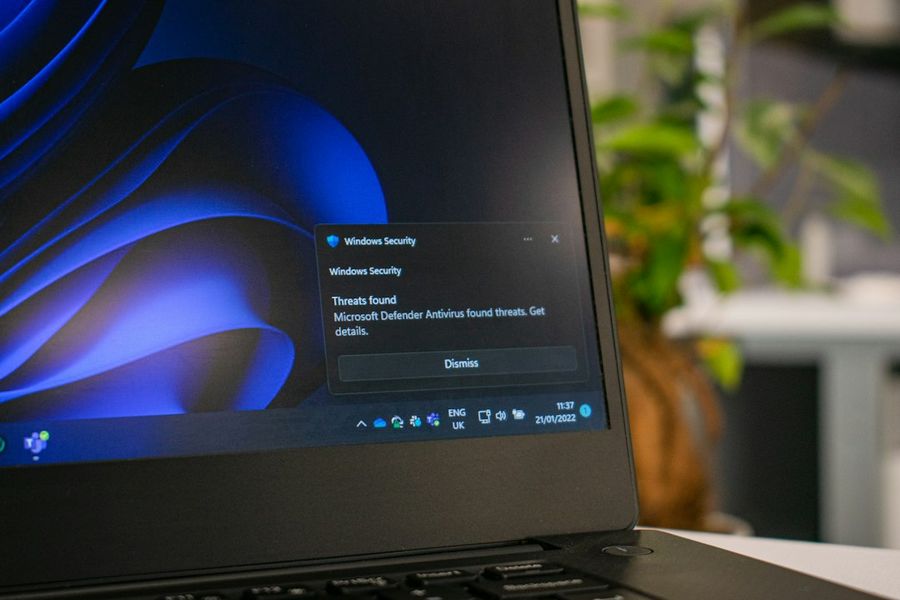
Windows Defender has evolved from a basic anti‑virus tool into a comprehensive endpoint protection platform that can meet the rigorous demands of modern enterprises. Yet, many organizations still run it with default settings, leaving a sizable attack surface. This guide walks you through the advanced configurations that turn Windows Defender into a hardened, policy‑driven security powerhouse. We’ll cover everything from baseline policy creation to fine‑tuning Attack Surface Reduction (ASR) rules, all with real PowerShell commands and Group Policy edits. By the end, you’ll have a reproducible hardening blueprint that can be rolled out across hundreds—or thousands—of machines.
What You’ll Need
- Administrative rights on target Windows 10/11 or Windows Server 2016+ machines
- PowerShell 5.1+ (or PowerShell 7 for remote sessions)
- Group Policy Management Console (GPMC) or Microsoft Endpoint Manager (Intune)
- Access to Microsoft Defender Security Center (security.microsoft.com)
- Basic familiarity with Windows Registry and PowerShell scripting
Step 1: Establish a Baseline Configuration via Group Policy
Before you start toggling individual settings, lock down the baseline using Group Policy Objects (GPO). This ensures consistency and makes future audits easier.
1. Open gpmc.msc and create a new GPO named Defender‑Hardening‑Baseline.
2. Link the GPO to the OU that contains your workstations and servers.
3. Navigate to Computer Configuration → Administrative Templates → Windows Components → Microsoft Defender Antivirus and enable the following policies:
- Turn off Microsoft Defender Antivirus – set to Disabled (ensures Defender stays on).
- Real-time Protection – enable Turn on real-time protection and Turn on behavior monitoring.
- Cloud‑Delivered Protection – enable Configure cloud-delivered protection and select Advanced level.
- Automatic Sample Submission – enable and choose Always prompt or Send safe samples automatically based on privacy policies.
Once the GPO is configured, run gpupdate /force on a test machine and verify the settings in MSFT_MpPreference via PowerShell (Get-MpPreference).
Step 2: Harden Real‑Time Protection and Cloud Features
Real‑time protection is the first line of defense. Use PowerShell to enforce stricter thresholds and enable cloud intelligence.
Set-MpPreference -DisableRealtimeMonitoring $false
    -MAPSReporting Advanced
    -CloudBlockLevel High
    -CloudExtendedTimeout 300
    -SignatureUpdateInterval 8
    -ThreatSeverityDefaultAction HighBlock
Explanation of key flags:
- -DisableRealtimeMonitoring $false – guarantees real‑time scanning stays on.
- -MAPSReporting Advanced – sends detailed telemetry to Microsoft for faster detection.
- -CloudBlockLevel High – blocks files flagged as high‑risk by the cloud service.
- -SignatureUpdateInterval 8 – checks for signature updates every 8 hours, reducing stale definitions.
After running the command, confirm the state with Get-MpPreference | Format-List RealTimeProtectionEnabled, CloudBlockLevel, MAPSReporting.
Step 3: Deploy Attack Surface Reduction (ASR) Rules
ASR rules are the most powerful way to lock down behavior that attackers often exploit (e.g., Office macros, PowerShell scripts, and credential dumping). Microsoft provides a set of pre‑defined rule IDs; you’ll enable the ones that align with your risk profile.
# Example: Block credential dumping, script execution from Office, and untrusted binaries
$asrRules = @(
    "D4F940AB-401B-4EFC-AADC-AD5F3C50688A", # Block credential dumping tools
    "3B576869-A4EC-4529-8536-B80A7769E899", # Block Office applications from creating child processes
    "5BEB7EFE-FD9A-4556-801D-275E5FFC04CC", # Block untrusted scripts from running
    "D3E037E1-3EB8-44C8-A917-579EF1E2B3F5", # Block executable files from running unless they’re signed and trusted
    "BE9BA2D9-53EA-4CDC-84E5-9B1EEEE46550"  # Block Win32 API calls that can be used for process injection
)
foreach ($rule in $asrRules) {
    Add-MpPreference -AttackSurfaceReductionRules @{"$rule" = "1"}
}
Use Get-MpPreference | Select-Object -ExpandProperty AttackSurfaceReductionRules_Actions to verify that each rule is set to Enabled (1). Remember to test these rules in a staging OU first; overly aggressive ASR can break legitimate business tools.
Step 4: Enable Controlled Folder Access (CFA) and Ransomware Protection
CFA protects high‑value directories (e.g., Documents, Desktop, OneDrive) from unauthorized write operations—a common ransomware vector.
Set-MpPreference -EnableControlledFolderAccess Enabled
    -ControlledFolderAccessProtectedFolders "C:Users%USERNAME%Documents","C:Users%USERNAME%Desktop","C:ProgramData"
Optionally, whitelist trusted applications that need write access:
Add-MpPreference -ControlledFolderAccessAllowedApplications "C:Program FilesMicrosoft OfficerootOffice16WINWORD.EXE"
After enabling CFA, monitor the Microsoft-Windows-Windows Defender/Operational event log for Event ID 1123 (blocked write attempts) to fine‑tune the whitelist.
Step 5: Configure Network Protection and Exploit Guard
Network Protection blocks outbound connections to known malicious IPs and domains, while Exploit Guard provides kernel‑level mitigations.
# Enable network protection (block both inbound and outbound)
Set-MpPreference -EnableNetworkProtection Enabled

# Enable Exploit Guard mitigations
Set-ProcessMitigation -System -Enable DEP, ASLR, CFG

# Enable additional exploit guard rules via GPO (Computer Configuration → Policies → Windows Settings → Security Settings → Exploit Protection)
Validate with Get-MpPreference | Select-Object -Property EnableNetworkProtection, EnableExploitGuard. For granular control, use the Exploit Protection UI in Windows Security or deploy a custom XML policy via GPO.
Step 6: Automate Continuous Monitoring and Reporting
A hardening effort is only as good as its visibility. Set up scheduled PowerShell jobs to pull Defender health metrics and push them to a SIEM.
# Create a scheduled task that runs every 4 hours
$action = New-ScheduledTaskAction -Execute 'PowerShell.exe' -Argument '-NoProfile -WindowStyle Hidden -Command "Get-MpComputerStatus | ConvertTo-Json | Out-File C:DefenderLogsstatus_$(Get-Date -Format yyyyMMdd_HHmm).json"'
$trigger = New-ScheduledTaskTrigger -Once -At (Get-Date).AddMinutes(5) -RepetitionInterval (New-TimeSpan -Hours 4) -RepetitionDuration ([TimeSpan]::MaxValue)
Register-ScheduledTask -TaskName 'DefenderHealthExport' -Action $action -Trigger $trigger -RunLevel Highest -User 'SYSTEM'
Feed the generated JSON files into your SIEM (Splunk, Azure Sentinel, etc.) and set alerts for anomalies such as real‑time protection disabled or signature update failures. Regularly review the Security Center dashboard for threat trends across the fleet.
Common Mistakes to Avoid
Even seasoned admins can trip over a few pitfalls when hardening Defender:
- Disabling real‑time protection for convenience – this instantly opens a window for malware to execute before a scan.
- Applying all ASR rules without testing – some legacy line‑of‑business apps rely on scripting or unsigned binaries; they will break if blocked outright.
- Neglecting to whitelist legitimate installers – Controlled Folder Access can prevent MSI packages from writing to protected folders, causing silent failures.
- Over‑relying on cloud‑block level “High” without fallback – if the device loses internet connectivity, cloud‑based decisions become unavailable; ensure local signatures are up‑to‑date.
- Forgetting to enable signature updates on isolated networks – use WSUS or Microsoft Endpoint Configuration Manager to push definitions.
Tips and Tricks
Here are a few pro‑level tweaks that often get overlooked:
- Use PowerShell Desired State Configuration (DSC) to codify Defender settings as code, enabling version control and rollback.
- Leverage Intune’s “Endpoint security” profile for cloud‑managed devices; it offers a UI for the same policies we set via GPO.
- Enable “Tamper Protection” via the UI or
Set-MpPreference -EnableTamperProtection Enabledto prevent malicious actors from disabling Defender. - Set “SubmitSamplesConsent” to 2 for automatic sample submission in high‑security environments.
- Regularly audit the registry key
HKLMSOFTWAREMicrosoftWindows DefenderFeaturesfor unexpected changes.
Frequently Asked Questions
Can I use Windows Defender alongside a third‑party AV?
Yes, but you must set DisableAntiSpyware to 1 via the registry or GPO to prevent conflicts. However, running two real‑time engines can cause performance degradation and false positives.
How do I roll back an ASR rule that broke an application?
Use the Remove-MpPreference -AttackSurfaceReductionRules @{"" = "1"} command, or disable the rule in the Endpoint security portal. Always keep a change‑log to trace which rule caused the issue.
Is Tamper Protection enough to stop attackers from disabling Defender?
Tamper Protection blocks non‑admin changes to key Defender settings, but a privileged attacker with SYSTEM rights can still bypass it. Combine Tamper Protection with strict privileged access management (PAM) and credential guard to reduce that risk.
Conclusion
Hardening Windows Defender is not a one‑time checklist; it’s an ongoing discipline that blends policy, automation, and vigilant monitoring. By establishing a GPO baseline, enabling cloud‑driven intelligence, deploying targeted ASR rules, and continuously exporting health metrics, you create a resilient defense that scales with your organization. Remember to test changes in a controlled environment, document every tweak, and keep an eye on the SIEM alerts. With these practices in place, Windows Defender can serve as a robust, enterprise‑grade shield against today’s sophisticated threats.


