Overclocking a processor can squeeze out noticeable performance gains without spending a dime on new hardware. Yet the thrill of higher clock speeds comes with the responsibility of keeping temperatures, voltages, and system stability in check. In this advanced guide we walk you through every stage of a safe overclock— from preparing your rig to stress‑testing the final configuration— while highlighting pitfalls that can turn a fun experiment into a costly disaster.
What You’ll Need
- Modern desktop CPU with overclocking headroom (Intel K‑series or AMD Ryzen)
- Motherboard that supports BIOS/UEFI overclocking (Z‑series, X‑series, or B‑series with advanced mode)
- High‑quality thermal paste and a capable CPU cooler (air cooler with 200 mm fan or AIO liquid cooler)
- Power supply rated at least 80+ Gold with sufficient wattage (minimum 550 W for most mid‑range builds)
- Monitoring software (HWMonitor, HWiNFO, or Ryzen Master)
- Stress‑test utilities (Prime95, AIDA64, Cinebench R23, OCCT)
- Backup of important data and a system restore point
Step 1: Prepare Your System and Baseline Performance
Before you touch any BIOS settings, record a performance baseline. Boot into Windows, run a benchmark suite such as Cinebench R23 (multi‑core test) and note the score, temperature, and power draw. Next, open HWMonitor and verify that your idle CPU temperature sits below 40 °C and that the cooler is seated correctly. This baseline will help you quantify the gains from overclocking and confirm that any instability is caused by the new settings, not pre‑existing issues.
Step 2: Update BIOS/UEFI and Enable XMP
Visit your motherboard manufacturer’s website and download the latest BIOS version. Flash the BIOS using the built‑in EZ Flash or Q‑Flash utility—follow the on‑screen prompts and never power‑cycle the system mid‑flash. Once the update completes, restart and enter the UEFI. Enable XMP (Extreme Memory Profile) for your RAM; this ensures the memory runs at its rated speed, which is crucial because an overclocked CPU will demand stable memory bandwidth.
Step 3: Adjust Core Ratio and Voltage Settings
Navigate to the overclocking section of the BIOS—often labeled “OC,” “Ai Tweaker,” or “Advanced Frequency Settings.” Set the CPU Core Ratio (or multiplier) to a modest increase, e.g., +2 steps (if your stock is 3.6 GHz, move to 3.8 GHz). Disable “Intel SpeedStep” or “AMD Cool’n’Quiet” to lock the frequency. For voltage, start with a slight bump: set CPU Core Voltage to a manual value of 1.25 V for Intel or 1.35 V for AMD, depending on your silicon. Avoid the “Auto” mode; manual control prevents the motherboard from overshooting safe limits.
Step 4: Tweak Load‑Line Calibration (LLC) and Power Limits
LLC smooths voltage droop under load, which can cause instability at higher clocks. Set LLC to a medium or high setting (often 2‑3 on a scale of 0‑4). Next, raise the CPU Power Limit (PL1/PL2 on Intel or PPT/TDC on AMD) by 10‑20 % to give the processor headroom during stress tests. Be cautious not to exceed the PSU’s rated capacity; a sudden 50 % increase in power draw can trigger a shutdown.
Step 5: Save, Boot, and Perform an Initial Stress Test
Save the BIOS profile and reboot into Windows. Launch HWMonitor to confirm the new clock speed and voltage. Run a quick stress test—Prime95 Blend for 5‑10 minutes or AIDA64 CPU Stress for 10 minutes. Watch temperatures closely; if the CPU exceeds 85 °C, abort the test and revert to a lower voltage or improve cooling. If the system crashes or you see errors in Prime95, return to the BIOS and raise the voltage in 0.025 V increments, or reduce the multiplier by one step.
Step 6: Fine‑Tune and Validate Long‑Term Stability
Once the system passes the short test, push the multiplier up by another step and repeat the stress cycle, this time for at least 30 minutes. Continue this iterative process—adjusting voltage, LLC, or power limits as needed—until you reach the highest stable frequency where temperatures stay below 80 °C under full load and no errors appear. After achieving a stable overclock, run a prolonged test: Prime95 Blend for 4‑6 hours or OCCT for 2 hours. Document the final clock, voltage, temperature, and benchmark scores. Compare these numbers to your baseline to quantify the performance uplift.
Common Mistakes to Avoid
1. **Rushing the Voltage** – Jumping straight to 1.4 V (Intel) or 1.5 V (AMD) can degrade silicon quickly. Increase voltage in small increments and always monitor temperatures.
2. **Neglecting Cooling** – Using the stock cooler for an overclocked CPU is a recipe for thermal throttling. Upgrade to a high‑performance air or liquid cooler before you start.
3. **Skipping XMP** – Forgetting to enable XMP leaves your RAM at default (often 2133 MHz), bottlenecking the CPU and causing instability.
4. **Over‑Powering the PSU** – An overclock can push power draw beyond the PSU’s safe margin, leading to voltage sag and crashes.
5. **Not Backing Up Data** – Power spikes during overclocking can corrupt files. Always have a recent backup before you begin.
Tips and Tricks
• Use the BIOS’s “Curve Optimizer” (AMD) or “Voltage Offset” (Intel) to fine‑tune voltage per core rather than applying a blanket voltage.
• Keep the VRM heatsinks clean and consider adding a fan to improve VRM cooling.
• If you hit a temperature wall, lower the CPU core voltage slightly and increase the multiplier—sometimes a higher clock at a lower voltage runs cooler.
• Enable “CPU Ratio Limit” to prevent the processor from boosting beyond your set multiplier during games that use Intel Turbo Boost or AMD Precision Boost.
Frequently Asked Questions
Will overclocking void my CPU warranty?
Most manufacturers, including Intel and AMD, consider overclocking a normal use case and do not void the warranty as long as you stay within the specified voltage limits. However, damage caused by extreme voltages or inadequate cooling is not covered.
How much performance gain can I expect?
Real‑world gains vary by architecture and workload, but a 5‑10 % increase in multi‑core performance is typical for a modest overclock (e.g., 3.6 GHz to 4.0 GHz). In CPU‑bound games, you may see 2‑5 % higher frame rates.
Can I overclock my laptop CPU?
Laptops generally lack BIOS overclock options and have constrained cooling, making safe overclocking impractical. Some high‑end gaming laptops offer a “Performance Mode” that raises boost clocks, but true manual overclocking is not recommended.
Conclusion
Overclocking a CPU safely is a disciplined blend of hardware knowledge, methodical testing, and patience. By following the step‑by‑step process outlined above—preparing your system, incrementally raising the multiplier, fine‑tuning voltage and power limits, and rigorously stress‑testing—you can extract meaningful performance gains while keeping temperatures and risks under control. Remember, the goal isn’t just higher numbers; it’s a stable, reliable system that delivers extra horsepower when you need it most. Happy tweaking, and may your silicon run cool and fast!
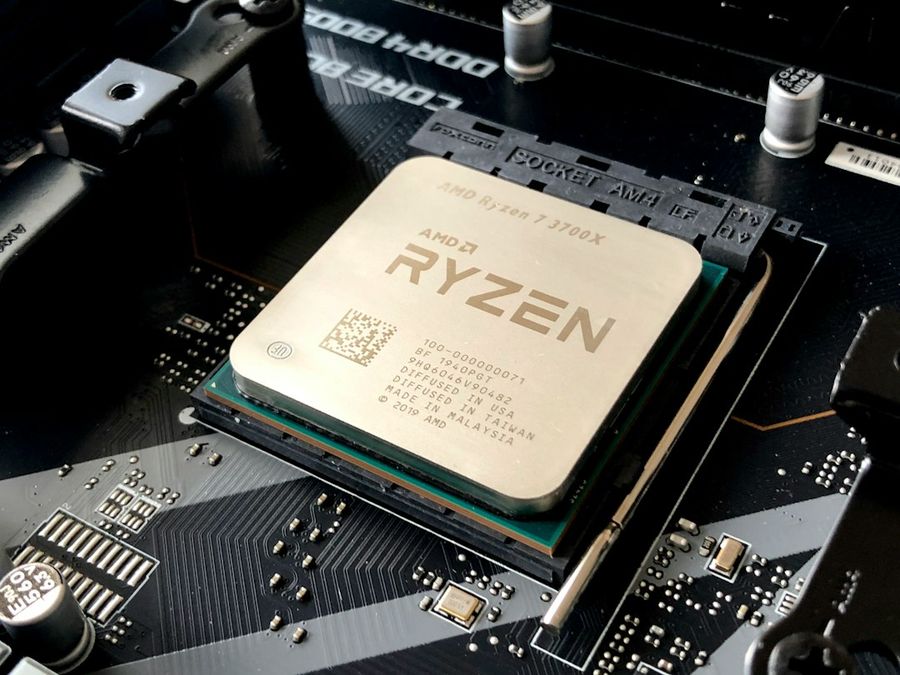
Photo by Olivier Collet on Unsplash